
Introduction
Water-Damaged Laptop? If you’ve ever spilled water, coffee, juice, or any other liquid on your laptop, you know how stressful and frustrating the situation can be. A water-damaged laptop doesn’t just stop you from working or studying—it can also mean potential data loss, expensive repairs, and long-term issues if not handled properly.
But here’s the good news: acting quickly and following the right steps can make a huge difference in whether your laptop survives. In this blog, we’ll cover 9 essential steps to take immediately after a liquid spill. We’ll also explain common mistakes to avoid, types of damage water can cause, and why professional repair at a trusted service provider like Arora Tech in Gloucester, NJ may ultimately be the safest way to save your device.
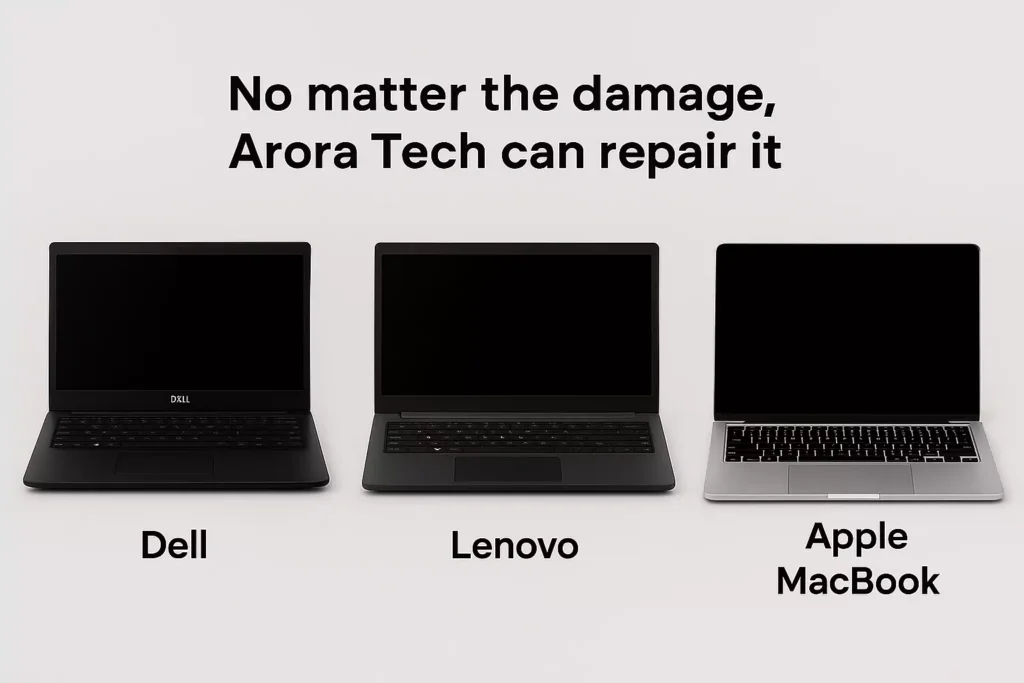
Whether you use a Dell, HP, Lenovo, Asus, Acer, Apple MacBook, Microsoft Surface, Samsung, MSI, Toshiba—or any other laptop brand—this guide will help you make the right moves in those first critical moments.
Why Water-Damaged Laptops Are So Dangerous
Before we dive into the 9 steps, it’s important to understand why a water-damaged laptop can become such a serious problem. Laptops are tightly packed with delicate electronic components—motherboards, processors, SSDs, RAM, keyboard circuits, fans, and batteries. Water (and even worse, liquids like soda or coffee with sugar or minerals) can cause:
- Short circuits
- Corrosion
- Permanent component damage
- Loss of important data
The danger isn’t always immediate. Sometimes your laptop will turn back on, only to fail days or weeks later as corrosion spreads. That’s why taking correct and immediate action is crucial.
9 Essential Steps to Take Immediately After a Water Spill
Here are the 9 steps you need to take immediately if you have a water-damaged laptop. Each step is essential to maximizing your chances of saving your device.
1. Power Off the Laptop Immediately
The single most important thing you can do after your laptop gets wet is to turn it off immediately. Do not try to save files, do not check if it still works—just hold down the power button until it shuts down.
Why? Because electricity and water don’t mix. The longer your laptop stays powered on after a spill, the greater the chance of a short circuit.
2. Unplug from Power and Remove All Accessories
If your laptop is connected to a charger, unplug it immediately. Also, disconnect any external devices like:
- USB drives
- External hard drives
- Mice and keyboards
- Headphones
This prevents further damage and ensures liquid doesn’t travel to other devices.
3. Remove the Battery If Possible
For laptops with removable batteries, carefully take the battery out right away. If your laptop has a sealed battery (like most modern MacBooks and ultrabooks), you won’t be able to remove it—but shutting down the system will help minimize the risk.
4. Drain Out Excess Liquid
Carefully tilt your laptop to allow as much liquid as possible to drain out. Avoid shaking it vigorously—that can spread water deeper into the components. Instead, gently angle it in different directions to let gravity help.
5. Dry the Exterior Thoroughly
Use a clean, absorbent cloth or paper towel to dry the outside of your laptop. Focus on the keyboard, vents, and any visible ports. Do not use a hairdryer or apply direct heat, as this can cause more harm than good.
6. Place the Laptop Upside Down in a Tent Position
Open your laptop to a 90-degree angle and place it upside down like an inverted “V” or tent. This position allows liquid to drain more easily from the keyboard and internal components.
7. Do Not Try to Power It On
One of the biggest mistakes people make with a water-damaged laptop is trying to turn it on too soon. Even if you’re curious, avoid the temptation. Turning it on before it’s properly dried and inspected can permanently fry the motherboard.
8. Use Absorbent Materials or Silica Gel Packs
If possible, place your laptop in a large bag or container with silica gel packs. These are far more effective than rice at absorbing moisture. Leave it there for at least 24–48 hours.
9. Take It to a Professional Repair Service
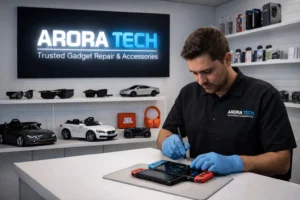
Once you’ve done everything you can at home, the next step is to bring your water-damaged laptop to a trusted repair center. At Arora Tech, our technicians have specialized tools to safely open laptops, clean out corrosion, replace damaged components, and restore your device to working condition.
Common Mistakes to Avoid with a Water-Damaged Laptop
- Don’t use a hairdryer or apply heat directly.
- Don’t put it in rice (silica gel is much better).
- Don’t wait days before taking action.
- Don’t assume it’s fine just because it turns on.
Types of Liquids and Their Effects
- Water: Can cause short circuits and corrosion, but easiest to clean.
- Coffee/Tea: Contains sugars and acids that increase corrosion.
- Soda/Juice: High sugar and acid content, extremely damaging.
- Alcohol: Less conductive but can still damage sensitive components.
Why Professional Help Matters
Even if your water-damaged laptop seems to recover, hidden corrosion can cause it to fail weeks or months later. Professional repair services like Arora Tech:
- Disassemble your laptop safely
- Clean corrosion using ultrasonic machines
- Test each component
- Replace damaged parts if necessary
This increases your chances of saving both your device and your data.
Why Choose Arora Tech for Water-Damaged Laptop Repair
At Arora Tech, we’ve successfully repaired countless water-damaged laptops of all brands. Customers choose us because:
- We’re conveniently located at Gloucester Premium Outlets.
- We repair all major brands: Dell, HP, Apple MacBook, Lenovo, Asus, Acer, Microsoft Surface, Samsung, MSI, Toshiba, and more.
- Our technicians use advanced diagnostic tools.
- We provide honest assessments and affordable repair options.
Store Information & Contact
📞 Call Now: +1 856-723-6939
📧 Email: techbyarora@gmail.com
📝 Repair Form: Submit your repair request here
🌐 Google Profile: Arora Tech New Jersey
🔗 Internal Link: Learn more about our services
Conclusion
A water-damaged laptop is a serious issue—but it doesn’t have to mean the end of your device. By following the 9 essential steps we’ve outlined, you can minimize damage and increase the likelihood of recovery.
And when you need professional help, remember that Arora Tech in Gloucester, NJ is your trusted destination for laptop repairs, water damage recovery, and more. Our expert team is here to help you get back to work, study, or play—quickly and affordably.



 by
by
One Response
I don’t think the title of your article matches the content lol. Just kidding, mainly because I had some doubts after reading the article.