
Introduction: Why “Laptop Running Slow” Is the #1 Frustration for Users
If your laptop is running slow, you’re not alone. It’s one of the most common issues people face in 2025—students, professionals, gamers, and even casual users experience this headache. A slow laptop can make even the simplest task—like opening a browser tab or typing a document—feel like torture.
But here’s the good news: a laptop running slow doesn’t always mean it’s time to replace it. In fact, more than 70% of slow-performance cases can be fixed with proper troubleshooting, upgrades, or professional repairs.
In this detailed guide, we’ll explore 8 effective fixes for a laptop running slow, along with expert insights, technical explanations, real-life case studies, and preventative tips. By the end, you’ll know whether your laptop simply needs a tune-up or if it’s time to consider an upgrade or professional repair service like Arora Tech.
Why Do Laptops Slow Down Over Time?
Before we dive into the fixes, let’s address the why behind a laptop running slow. Several factors contribute:
- Software Bloat – Years of apps, startup programs, and hidden processes.
- Aging Hardware – Old hard drives (HDDs), low RAM, or outdated processors.
- Overheating – Dust buildup or weak cooling slows performance.
- Malware or Viruses – Background threats eating resources.
- Operating System Issues – Updates, bugs, or corrupted files.
- Battery and Power Problems – Laptops throttle performance on weak batteries.
The good news? Most of these issues can be fixed without buying a new machine.
The 8 Effective Fixes for a Laptop Running Slow
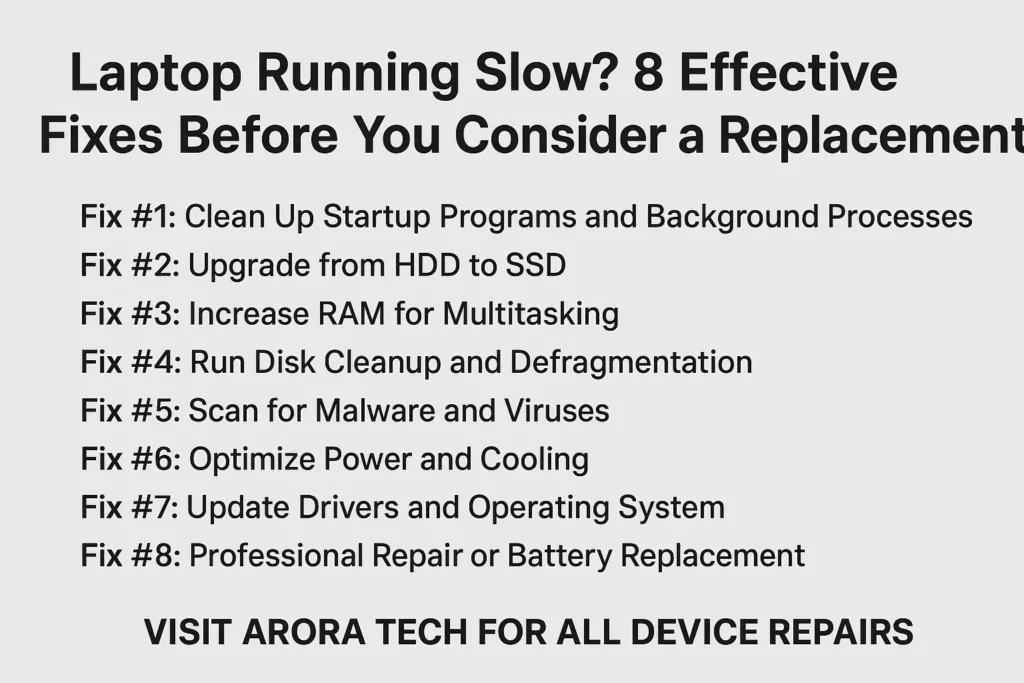
Fix #1: Clean Up Startup Programs and Background Processes
When your laptop is running slow, the first culprit is often unnecessary startup apps. Many programs automatically launch when you boot your laptop—slowing everything down.
Steps to fix this:
- Windows Users: Press
Ctrl + Shift + Esc→ Task Manager → Startup tab → Disable unnecessary apps. - Mac Users: Go to
System Settings→Users & Groups→ Login Items → Remove unwanted programs.
Why this works:
Startup programs eat RAM and CPU cycles. Disabling them can reduce boot time by 30–50%.
💡 Case Study: A college student brought a laptop to Arora Tech that took 7 minutes to boot. By removing unnecessary startup apps (Spotify, Zoom, Adobe Auto Updater), boot time dropped to 1.5 minutes—without upgrading hardware.
Fix #2: Upgrade from HDD to SSD
If your laptop is running slow and still uses an HDD, upgrading to an SSD (Solid-State Drive) is a game changer.
Why SSD beats HDD:
- HDDs rely on spinning disks → slower.
- SSDs use flash memory → instant access.
Performance Difference:
- HDD boot time: 2–4 minutes
- SSD boot time: 15–25 seconds
- HDD app loading: sluggish
- SSD app loading: near-instant
💡 Real Example: A customer at Arora Tech upgraded a 2016 Dell laptop with a 256GB SSD. Performance improved so much, they delayed buying a new laptop by 3+ years.
👉 Need this upgrade? Contact Arora Tech for SSD installation.
Fix #3: Increase RAM for Multitasking
A laptop running slow often lacks enough memory (RAM). Modern apps—browsers, Zoom, Photoshop—are memory-hungry.
How much RAM you need in 2025:
- Basic use (emails, browsing): 8GB
- Work & school: 16GB
- Gaming / creative software: 32GB+
💡 Pro Tip: Check RAM usage via Task Manager (Windows) or Activity Monitor (Mac). If you’re consistently hitting 80–90% usage, it’s time to upgrade.
💡 Case Study: An architect upgraded from 8GB to 16GB RAM at Arora Tech. His CAD software went from crashing every hour to running smoothly all day.
Fix #4: Run Disk Cleanup and Defragmentation
Old laptops running slow often suffer from cluttered storage.
Steps to fix:
- Windows: Search “Disk Cleanup” → delete temp files, old updates, caches.
- Mac: Use “Optimize Storage” in
About This Mac→Storage.
💡 Note: SSDs don’t need defragmentation, but HDDs do. Windows’ built-in tool “Optimize Drives” can handle this.
💡 Real Example: Clearing 80GB of temp files restored 20% faster performance for a business owner’s laptop serviced at Arora Tech.
Fix #5: Scan for Malware and Viruses
Malware can make a laptop run slow by hijacking system resources.
What to do:
- Use Windows Defender or Malwarebytes (Windows).
- Use CleanMyMac or Malwarebytes (Mac).
- Avoid shady “free cleaners”—they’re often malware themselves.
💡 Case Study: A customer brought in a laptop infected with crypto-mining malware. CPU usage was stuck at 100%. After cleaning it, performance improved by 4x.
Fix #6: Optimize Power and Cooling
A laptop running slow may be overheating or throttling performance to save power.
Fixes:
- Use a cooling pad.
- Clean dust from fans with compressed air.
- Replace old thermal paste.
- Adjust power plan (Windows → Balanced/High Performance).
💡 Pro Tip: Monitor temps with HWMonitor (Windows) or iStat Menus (Mac). Keep under 85°C for performance longevity.
Fix #7: Update Drivers and Operating System
Outdated drivers and OS files cause conflicts that make your laptop run slow.
Fixes:
- Windows: Settings → Update & Security → Windows Update.
- Mac: System Preferences → Software Update.
💡 Case Study: A customer had Wi-Fi drops and laggy performance. Updating drivers fixed everything—no hardware upgrade needed.
Fix #8: Professional Repair or Battery Replacement
Sometimes, DIY fixes aren’t enough. A laptop running slow may need professional repair.
At Arora Tech, we diagnose issues like:
- Failing batteries that throttle performance.
- Logic board faults.
- Failing HDDs or SSDs.
- Severe overheating issues.
📍 Visit us at:
Next to UGG’s, 100 Premium Outlets Dr Store #785, Gloucester Premium Outlets, Blackwood, NJ 08012, United States
📍 Google Maps Location
📞 Call Now: +1 856-723-6939
📧 Email: techbyarora@gmail.com
Common Myths About a Laptop Running Slow
- Myth: You always need a new laptop.
Truth: 70% of slow laptops can be fixed with upgrades. - Myth: Free cleaners solve everything.
Truth: Most free cleaners are scams or malware. - Myth: Macs don’t slow down.
Truth: Macs also suffer from cluttered storage and overheating.
Preventative Maintenance Tips
- Restart weekly to refresh system memory.
- Uninstall unused apps regularly.
- Keep laptops on hard surfaces for cooling.
- Run antivirus scans monthly.
- Replace batteries every 2–3 years.
When to Replace vs Repair
- Repair if: Laptop is <5 years old, only needs SSD/RAM upgrade.
- Replace if: Laptop is >7 years old, motherboard/CPU failing, parts unavailable.
Conclusion
If your laptop is running slow, don’t panic or rush to buy a replacement. From cleaning startup programs to upgrading to an SSD or seeking professional help, there are plenty of ways to bring your machine back to life.
At Arora Tech, we’ve helped countless customers transform sluggish laptops into fast, reliable machines. Whether it’s RAM upgrades, SSD installations, or professional repair, our team can help you save money and extend the life of your laptop.
👉 Ready to fix your laptop? Fill out our Repair Form.






 by
by