
Introduction
If you’ve been searching for reliable Laptop Repair solutions that actually work in 2025, you’re in the right place. Whether your computer has slowed to a crawl, freezes during basic tasks, or struggles with apps it once handled effortlessly, you don’t always need a new laptop—sometimes you just need the right fixes. Modern laptops are durable, repairable, and capable of lasting many years with proper care, but knowing which upgrades and optimizations truly restore speed can feel overwhelming.
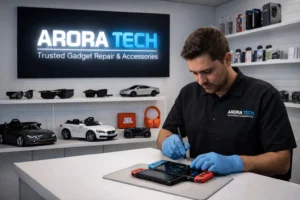
That’s why we created this comprehensive guide on the 7 Proven Fixes That Instantly Boost Speed in 2025. These solutions come from industry technicians, performance engineers, and real-world repair experiences observed in servicing thousands of devices. While some optimizations are simple enough for beginners, others require professional attention—especially when dealing with hardware, overheating, or faulty components. If at any point you’re unsure, turn to a trusted service provider such as Arora Tech, conveniently located at Next to UGG’s, 100 Premium Outlets Dr Store #785, Gloucester Premium Outlets, Blackwood, NJ 08012, United States.
👉 View store on Google Maps
Let’s dive in.
Fix #1: SSD Optimization & Upgrades — The Fastest Speed Boost of 2025
Among all Laptop Repair procedures, upgrading to an SSD or optimizing your existing one remains the most transformative improvement. In 2025, SSDs have become faster, more durable, and more affordable, making this upgrade a must for anyone still using mechanical hard drives (HDDs).
Why SSDs Matter More in 2025
- Windows 11 and 2025-era software require faster read/write speeds
- Apps load nearly instantly on SSDs
- Boot times decrease from minutes to seconds
- SSDs consume less power and improve battery life
Signs You Need an SSD Upgrade
- Slow boot times
- Lag when opening basic apps
- Frequent system freezing
- Clicking noises from an HDD
- High disk usage at 100% in Task Manager
How to Optimize an Existing SSD
If you already have an SSD but performance has degraded:
- Enable TRIM Support
Ensures SSD longevity and speed. - Update Firmware
Manufacturers release speed and stability improvements. - Use Disk Cleanup Tools
Removes junk files that affect performance.
When to Seek Professional Help
If cloning, installation, or data migration feels complicated, technicians at certified repair shops can complete the upgrade safely and quickly. Even though many customers can DIY this fix, professional assistance ensures zero data loss and correct installation.
For more insights, you can browse more resources on our Services page.
Fix #2: RAM Upgrade or Rebalancing — Multitasking Without Limits
Another top Laptop Repair solution that instantly boosts speed is upgrading or optimizing your RAM. In 2025, modern workloads require more memory than ever.
Is Your Laptop Struggling With Multitasking?
Symptoms include:
- Apps crashing when multiple tabs are open
- Sluggish performance when switching apps
- High memory usage above 80%
- Stuttering during video calls or streaming
Recommended RAM Amounts for 2025
- 8GB: Bare minimum for basic tasks
- 16GB: Ideal for professionals, students, and remote workers
- 32GB+: Power users, creators, and engineers
Dual-Channel Memory Boost
Installing RAM in matched pairs nearly doubles bandwidth, a crucial trick many people overlook.
Why RAM Upgrades Instantly Boost Speed
- Improves background processing
- Reduces system swapping
- Prevents SSD wear from constant virtual memory use
- Makes Windows 11/12 run smoother
Professional Tip
Some laptops—particularly ultrabooks—have soldered RAM. A professional technician can confirm upgrade compatibility, avoiding unnecessary purchases.
Fix #3: Deep Software Cleanup & OS Optimization
Not every speed issue requires hardware-related Laptop Repair. Very often the bottleneck is software clutter, unnecessary startup programs, or outdated system files.
Top Optimization Strategies for 2025
1. Remove Bloatware
Manufacturers and third-party apps often install background services that drain resources.
2. Disable Startup Programs
Use Task Manager → Startup Apps.
3. Update Drivers & BIOS
New updates can drastically improve:
- Stability
- Compatibility
- Speed
- Battery performance
4. Use Cloud-Based Storage Wisely
Windows performs best when you maintain at least 20% free drive space.
5. Refresh or Reinstall Windows (If Needed)
A clean OS reinstall often restores performance to like-new levels, especially when malware or corrupted files are involved.
Why This Fix Matters in 2025
With Windows 11 continuing to evolve and AI-powered apps becoming standard, background processes have doubled compared to older operating systems. Keeping things clean ensures your system runs efficiently 24/7.
Fix #4: Cooling System Repair & Overheating Control
In Laptop Repair, cooling issues are among the most overlooked causes of performance slowdown. Overheating throttles CPU speed, reduces battery life, and eventually damages internal components.
Signs of Overheating
- Fan running loudly
- Laptop gets hot even during light tasks
- Sudden shutdowns
- Lag during gaming or video editing
- Performance decreases over time
Essential Cooling Fixes for 2025
1. Deep Dust Cleaning
Dust restricts airflow and forces fans to work harder.
2. Thermal Paste Replacement
Thermal paste dries out after around 2–3 years. Reapplying high-quality paste can:
- Lower temperatures by up to 15°C
- Prevent CPU/GPU throttling
- Improve long-term performance
3. Fan Repair or Replacement
Faulty fans make laptops unusable until replaced.
4. Airflow Optimization
A technician can identify whether vents are blocked or incorrectly placed.
Why This Fix Instantly Boosts Speed
Once temperatures decrease, CPUs can run at their full turbo boost speeds again—something every user can feel immediately.
If the overheating continues even after cleaning, visit a professional repair store such as Arora Tech for diagnostics.
Fix #5: Malware & Security Repair
With cyber threats rising in 2025, malware remains one of the most common performance killers. Many devices brought for Laptop Repair turn out to be affected by hidden malicious scripts or background crypto-miners hogging CPU power.
How Malware Slows Your Laptop
- Uses CPU for hidden tasks
- Consumes internet bandwidth
- Creates system errors
- Installs pop-ups and unwanted extensions
- Compromises your data
Best Malware-Removal Practices
1. Use Trusted Antivirus Tools
Windows Defender is excellent in 2025, but pairing it with a secondary scanner improves protection.
2. Remove Browser Extensions
Unverified extensions often inject ads or tracking scripts.
3. Reset Browsers
Restoring default settings removes harmful tweaks.
4. Clean Registry & Temporary Files
Malware often corrupts background files.
When to Get Professional Malware Repair
If:
- the system won’t boot,
- your data is encrypted,
- multiple malware attacks recur,
- important files go missing,
it’s time for expert help.
Fix #6: GPU & Display System Optimization for Graphics-Heavy Users
This fix matters most for creators, gamers, designers, drone pilots, and engineers. Many laptops slow down during graphics tasks due to GPU misconfiguration, outdated drivers, or overheating.
Common GPU-Related Slowdowns
- Stuttering during video editing
- Low FPS while gaming
- Graphical glitches
- Slow export times
- Display freezing
2025’s Best Graphics Optimization Steps
1. Install Latest GPU Drivers
NVIDIA, AMD, and Intel release frequent performance patches.
2. Update Video Editing & Rendering Software
Optimized software uses GPU power efficiently.
3. Enable Hardware Acceleration
Browsers, editing tools, and streaming apps run significantly faster.
4. Calibrate the Display
Incorrect refresh-rate settings can cause lag.
5. Check for Cable or Connector Damage
Loose connectors cause flickering and slowdowns.
6. GPU Repasting (Advanced Repair)
Just like CPUs, GPUs also require fresh thermal paste every few years.
If display issues persist, this is an area where professional Laptop Repair becomes essential.
Fix #7: Battery Optimization & Power System Repair
Many laptops feel slower simply because they run on power-saving or throttled modes when the battery becomes weak. Performance management systems in 2025 are extremely sensitive to battery health.
Symptoms of Battery-Related Slowdowns
- Laptop slows dramatically when unplugged
- Battery drains unusually fast
- Charging takes too long
- Sudden power drops
2025 Power Optimization Checklist
1. Replace Aging Batteries
Modern lithium batteries lose effectiveness after 500–700 cycles.
2. Correct Power Mode
Use:
- Balanced Mode for everyday tasks
- Performance Mode when plugged in
3. Fix Charging Port Issues
Loose or damaged connectors lead to inconsistent charging.
4. Calibrate the Battery
A full drain + recharge improves reporting accuracy.
Why Battery Repair Boosts Speed
When the system detects a weak battery, it reduces CPU voltage to prevent unexpected shutdowns—instantly slowing performance. Fixing the power system restores full speed.
Bonus Fix: Internal Cleaning & Motherboard Level Repair
Sometimes the problem is deeper than surface-level fixes.
Motherboard-level Laptop Repair may be required if:
- the system is extremely slow even after OS optimization
- RAM slots aren’t detecting memory
- charging circuits malfunction
- liquid damage occurred
- power ICs or MOSFETs fail
This kind of repair should always be handled by experienced technicians.
How to Know Which Fix Your Laptop Needs
If you’re unsure which of the seven fixes applies to your situation, here’s a quick guide:
Slow Boot Times
➡ SSD optimization or upgrade
Freezing & Lag
➡ RAM upgrade or software cleanup
Laptop gets hot
➡ Cooling system repair
Apps crash frequently
➡ Malware removal or GPU optimization
Laptop slow when unplugged
➡ Battery or charging port repair
Performance worsening over time
➡ Deep clean + OS optimization
Strange noises or clicking
➡ HDD → SSD upgrade (urgent)
Wi-Fi dropping or network lag
➡ Driver updates + malware cleanup
If your laptop shows multiple issues at once, a full diagnostic test is recommended.
Why 2025 Laptops Become Slow Faster Than Before
Understanding the cause helps you choose the right repair.
1. Heavier Software
AI-powered apps now consume 2–4× more resources.
2. Background Syncing
Cloud services constantly update files.
3. Higher Thermal Output
Modern processors run hotter and require better cooling.
4. Poorly Optimized Windows Features
Windows 11’s additional animations and processes add strain.
5. Older Storage Devices
HDD users experience severe bottlenecks in 2025.
6. Dust Accumulation
Restricted airflow throttles CPU/GPU performance.
7. More Cyber Threats
Malware continues to evolve rapidly.
The good news? Each of these problems is completely fixable with the right Laptop Repair strategy.
When DIY Fixes Are Enough—and When to Seek Professionals
Some tasks—like removing startup apps or clearing storage—are safe for beginners. However, many repairs require experience, tools, and precision.
DIY Friendly Fixes
- Disk cleanup
- Startup optimization
- Browser reset
- Basic malware scan
- Removing unused programs
Repairs Best Left to Experts
- SSD cloning
- RAM slot repair
- Motherboard component work
- GPU repasting
- Battery replacement
- Fan repair
- Liquid damage restoration
Seeking professionals prevents accidental damage, lost data, or voided warranties.
Why Many Locals Trust Arora Tech for Laptop Repair
Although this guide is created to help you solve problems yourself, many users feel more confident having a trained expert handle the repair—especially when important data, work files, career documents, and personal memories are at risk.
Customers around the Gloucester Premium Outlets area often rely on Arora Tech because:
- Technicians handle thousands of laptops each year
- Repairs are completed quickly and efficiently
- They work with all major brands: Dell, HP, Lenovo, Acer, ASUS, Apple, MSI, Samsung, and more
- Diagnostics are accurate
- Only high-quality parts are used
- Customer service is friendly and transparent
If you need to schedule a repair, you can easily submit your device using the Repair Form:
👉 https://techbyarora.com/contact#repair-form
Or explore their full service list:
👉 https://techbyarora.com/services/
How to Keep Your Laptop Fast for Years (2025 Maintenance Checklist)
Here is a yearly maintenance plan recommended by technicians:
Weekly
- Restart your laptop
- Clear browser cache
- Update antivirus definitions
Monthly
- Remove unused files
- Update apps
- Scan for malware
Every 3–6 Months
- Deep software cleanup
- Optimize storage
- Check for Windows updates
Every 12–18 Months
- Replace thermal paste
- Full internal cleaning
- Battery health check
Every 2–3 Years
- SSD upgrade (if needed)
- RAM upgrade
- Full servicing
Following this schedule prevents major issues from occurring.
Conclusion
Your laptop doesn’t need to stay slow—not in 2025. With the right Laptop Repair methods, you can boost speed instantly, extend longevity, and get more performance out of your device without spending money on a new machine.
Whether you choose DIY fixes or prefer to have a professional handle the repair, these seven proven techniques are powerful, reliable, and effective for nearly every laptop model on the market today.
If you ever need help diagnosing or repairing your device, you can contact the experienced team at Arora Tech—your trusted partner for all things tech.
📍 Store Address:
Next to UGG’s, 100 Premium Outlets Dr Store #785, Gloucester Premium Outlets, Blackwood, NJ 08012, United States
👉 Open in Google Maps
📞 Call Now: +1 856-723-6939
📧 Email: techbyarora@gmail.com
📝 Repair Form: https://techbyarora.com/contact#repair-form
To learn more about device care or explore other repair blogs, visit our blog section:
👉 https://techbyarora.com/blog/
Outgoing Link
Visit our Google Business Profile:
👉 https://www.google.com/search?q=Arora+Tech+New+Jersey


 by
by
2 Responses
I love how this post points out that you don’t always need a new laptop to fix performance. Hardware upgrades like SSDs and RAM are a game changer, but I think many users forget to update their drivers regularly, which can also be a big performance boost.
I don’t think the title of your article matches the content lol. Just kidding, mainly because I had some doubts after reading the article.