Introduction
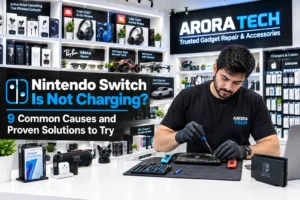
The Nintendo Switch is designed to make gaming convenient, whether you enjoy playing on your television, using the handheld screen, or taking your console with you. But that convenience can quickly disappear when you connect the charger and nothing happens. If your Nintendo Switch Is Not Charging, you may see a completely black screen, a low-battery symbol that never disappears, or a battery percentage that refuses to increase.
Charging problems can have several causes. Sometimes, the solution is as simple as reconnecting the power adapter or trying another wall outlet. In other cases, the issue may involve the USB-C charging port, battery, charging circuit, dock, or internal components.
Before assuming that your console needs an expensive repair, it is worth trying a few safe troubleshooting steps. This guide explains nine common reasons a Nintendo Switch may not charge, how to identify possible causes, and what you can do to resolve them.
Whether you own an original Nintendo Switch, Nintendo Switch OLED, or Nintendo Switch Lite, the steps below can help you narrow down the problem. If your Nintendo Switch Is Not Charging after basic troubleshooting, a professional inspection can help identify the underlying fault and prevent further damage.
1. Check the Charging Cable and Power Adapter
One of the first things to check when your Nintendo Switch Is Not Charging is the power adapter and charging cable. A damaged cable, loose connection, or faulty adapter can prevent the console from receiving enough power.
Charging accessories can become worn over time. Repeated bending, pulling, or twisting may damage the cable internally, even if the outer covering looks normal. The adapter may also develop a fault or stop supplying power consistently.
What to check
- Inspect the cable for cuts, fraying, kinks, or exposed wires.
- Check the adapter for visible damage, unusual smells, or signs of overheating.
- Make sure the USB-C connector is not bent or loose.
- Confirm that the cable is fully connected to the adapter and console.
- If possible, test the console with a compatible, known-working Nintendo Switch power adapter.
Avoid using a damaged cable or adapter. If an accessory becomes unusually hot, emits a burning smell, or shows visible damage, disconnect it and stop using it.
Try charging directly
If you normally charge your Nintendo Switch through its dock, remove the console and connect the compatible power adapter directly to the console’s USB-C port. This can help you determine whether the issue may be related to the dock or its connection rather than the console itself.
If the console begins charging with another compatible adapter, the original adapter or cable may be the cause. If your Nintendo Switch Is Not Charging with a known-working accessory, continue to the next steps.
2. Try a Different Wall Outlet
A wall outlet or power strip can sometimes be the source of a charging problem. If the outlet is not supplying power correctly, your Nintendo Switch may not charge even when the console and adapter are working.
This is a simple check, but it can help rule out an external power issue before you investigate the console.
How to test the outlet
- Disconnect the Nintendo Switch power adapter from the current outlet.
- Connect it to another wall outlet that you know is working.
- Avoid using a power strip or extension lead for this test.
- Connect the adapter to the console and check whether the charging indicator or battery screen responds.
- Leave the console connected for a short period to see whether the battery level changes.
If the console charges from another outlet, the original outlet or power strip may be responsible. If the Nintendo Switch Is Not Charging from multiple working outlets, the problem may be related to the adapter, charging port, battery, or internal hardware.
Do not attempt to repair a damaged wall outlet yourself. If you suspect an electrical issue, have it inspected by a qualified electrician.
3. Perform a Forced Restart
Sometimes, a Nintendo Switch may appear unresponsive because of a temporary system freeze or power-management issue. The screen may remain black even when the console has not completely shut down. A forced restart can help determine whether the problem is software-related.
How to force restart a Nintendo Switch
- Disconnect the console from the dock.
- If it is connected to a charger, disconnect the charger briefly.
- Press and hold the POWER button for approximately 20 seconds.
- Release the button.
- Press the POWER button once to turn the console on.
- Connect the compatible power adapter and check whether charging begins.
If the battery is deeply discharged, the console may not turn on immediately. Connect the charger and allow it to remain plugged in for around 30 minutes before checking again.
A forced restart does not normally erase saved games or user data. However, it is not a repair for a physically damaged charging port or faulty battery.
If your Nintendo Switch Is Not Charging and remains unresponsive after a forced restart, continue with the hardware checks below.
4. Inspect the USB-C Charging Port
The USB-C charging port is one of the most important components to examine when your Nintendo Switch Is Not Charging. The port is used to connect the charging adapter and, on compatible models, the dock. Frequent plugging and unplugging, accidental impacts, or debris can affect the connection.
Common signs of a charging-port problem
- The charging cable feels loose when connected.
- Charging starts and stops when the cable moves.
- The console only charges when the connector is held at a particular angle.
- The USB-C port appears bent, damaged, or unusually worn.
- The console does not respond to a known-working compatible charger.
What you can safely do
Use a flashlight to look at the port without inserting anything into it. Check for visible lint, dust, or damage. If you notice debris, avoid using metal objects, pins, needles, or other sharp tools to remove it. These can damage the small contacts inside the port.
Do not pour liquid into the port or use heat to dry it. If the port looks damaged, the cable does not fit correctly, or charging works only at a particular angle, stop repeatedly reconnecting the cable.
A damaged USB-C port may require professional repair. If your Nintendo Switch Is Not Charging because of a worn or damaged port, a technician can inspect the connector and determine whether it needs repair or replacement.
5. Check Whether the Nintendo Switch Dock Is the Problem
If your Nintendo Switch charges through the dock, the dock and its connections may be contributing to the issue. A console that does not charge while docked may still work when connected directly to a compatible power adapter.
The dock, adapter, HDMI connection, or USB-C connection may need to be checked separately.
Troubleshooting the dock
- Remove the Nintendo Switch from the dock.
- Disconnect the power adapter from the dock and wall outlet.
- Wait briefly before reconnecting the adapter.
- Connect the compatible power adapter directly to the console.
- Check whether the console begins charging.
- If direct charging works, reconnect the dock and test it again.
If your console charges directly but not when docked, the dock or its connections may be involved. If the console does not charge either way, the issue may be with the adapter, port, battery, or internal charging hardware.
Make sure the dock and console are compatible with your model and that the connections are secure. Do not force the console into the dock if it does not fit properly.
If your Nintendo Switch Is Not Charging through the dock but works with direct charging, have the dock and its power connections checked before assuming the console itself is faulty.
6. Allow Time for a Deeply Discharged Battery
A Nintendo Switch with a very low or deeply discharged battery may not turn on as soon as you connect the charger. The screen can remain black for a while, which may make it seem as though the console is not receiving power.
If the console has been unused for a long period, or the battery was completely depleted, it may need time before the charging screen appears.
What to do
- Connect the console to a compatible, known-working power adapter.
- Plug the adapter directly into a working wall outlet.
- Leave the console connected for approximately 30 minutes.
- Check whether the charging indicator or battery screen appears.
- If the console responds, allow it to charge further before using it.
Avoid repeatedly pressing the POWER button while the console is recovering from a low battery. Give it time to receive power.
If the console remains completely unresponsive after an extended period with a known-working adapter, the issue may be more than a deeply discharged battery. A battery that has deteriorated or an internal power fault may need professional diagnosis.
If your Nintendo Switch Is Not Charging even after being left connected to a compatible adapter, do not assume that leaving it plugged in indefinitely will resolve the problem.
7. Consider Software or System-Related Issues
Charging is primarily a hardware function, but temporary software or system issues can sometimes make the console behave unexpectedly. For example, the screen may freeze, the battery indicator may not update correctly, or the console may fail to respond normally.
A forced restart is a useful first step because it can clear some temporary system states.
What to try
- Perform the forced restart described earlier.
- Connect the console to a compatible charger.
- Allow it to charge before attempting to use it.
- If the console starts normally, check for available system updates through the system settings.
Only attempt system updates if the console has enough battery power and remains stable during the process. Avoid resetting the console or initializing it as an early troubleshooting step, especially if you have important saved data.
If the system continues to freeze, shut down unexpectedly, or display an incorrect battery level, the issue may require further diagnosis. Software troubleshooting will not fix a physically damaged USB-C port, a failing battery, or a defective charging circuit.
When your Nintendo Switch Is Not Charging alongside other unusual system behavior, note the symptoms and share them with a repair technician.
8. Look for Battery Wear or Battery Damage
Like other rechargeable devices, Nintendo Switch consoles use batteries that can lose capacity over time. Battery wear may lead to shorter play sessions, sudden shutdowns, inconsistent battery readings, or difficulty holding a charge.
A battery issue is one possible reason a Nintendo Switch Is Not Charging, but charging symptoms alone cannot confirm that the battery is faulty.
Possible signs of battery trouble
- The battery drains much faster than it used to.
- The console shuts down unexpectedly despite showing remaining charge.
- The battery percentage changes unusually quickly.
- The console only operates while connected to power.
- The console does not retain a charge after being disconnected.
Important battery safety
If you notice swelling, a raised screen or back cover, unusual heat, a chemical smell, or any sign that the battery may be damaged, stop using and charging the console. Do not press, puncture, bend, or attempt to remove a swollen battery yourself.
Battery replacement involves opening the console and handling delicate components. If you suspect a battery problem, arrange a professional inspection rather than attempting a repair without the proper tools and experience.
A technician can test the battery and charging system to identify whether the battery, port, adapter, or another component is responsible. If your Nintendo Switch Is Not Charging because of battery deterioration, the appropriate repair will depend on the console’s condition and model.
9. Check for Internal Charging Circuit Problems
If the adapter, outlet, dock, and charging port appear to be working, the problem may be inside the console. Internal charging components manage the power supplied to the battery. If one of these components fails, the console may not charge correctly.
Internal hardware problems can occur after accidental impact, exposure to liquid, electrical issues, or component wear. However, the same symptoms can also be caused by external accessories or the charging port, so testing is important before deciding on a repair.
Symptoms that may indicate an internal fault
- The console does not charge with a known-working compatible adapter.
- The console remains unresponsive after a forced restart.
- Charging is inconsistent despite a secure cable connection.
- The console becomes unusually hot during charging.
- The console has a history of liquid exposure or physical impact.
Internal charging circuit diagnosis usually requires specialist equipment and experience with small electronic components. Opening the console without the right tools may cause additional damage or complicate a future repair.
If your Nintendo Switch Is Not Charging after the basic checks in this guide, a professional technician can inspect the charging port, battery, and internal power circuitry to identify the likely cause.
Could Liquid Exposure Cause Charging Problems?
Liquid exposure can affect the charging port and internal components. Even if a console appears to work after contact with moisture, corrosion or electrical damage may develop later.
If your Nintendo Switch has been exposed to water or another liquid:
- Disconnect the charger immediately if it is safe to do so.
- Turn the console off if it is still operating and can be shut down safely.
- Do not connect it to a charger to test whether it still works.
- Do not use a hair dryer, heater, or other direct heat source.
- Do not put the console in rice.
- Arrange a professional inspection.
Charging a device while moisture is present can increase the risk of further damage. A technician can inspect the console for liquid-related problems and advise on possible repair options.
If your Nintendo Switch Is Not Charging after liquid exposure, avoid repeated charging attempts until the console has been assessed.
When Should You Get Professional Nintendo Switch Repair?
Basic troubleshooting can resolve some charging problems, but certain symptoms suggest that further inspection is needed. Continuing to test a damaged device may worsen the issue, particularly if the battery, charging port, or internal circuitry is affected.
Consider professional repair if:
- Your console does not respond to a compatible, known-working charger.
- The USB-C port is loose, bent, or visibly damaged.
- Charging works only when the cable is held at an angle.
- The console repeatedly shuts down or loses charge unexpectedly.
- The console becomes unusually hot while charging.
- The device has been exposed to liquid.
- The battery appears swollen or physically damaged.
- The console remains unresponsive after a forced restart and charging attempt.
A repair technician can inspect the console and explain the possible causes before recommending a repair. The exact solution depends on the model and the fault found during diagnosis.
How Much Does Nintendo Switch Charging Repair Cost?
The cost of repairing a Nintendo Switch that will not charge depends on the component causing the problem. A faulty accessory may only need to be replaced, while a damaged charging port, battery, or internal circuit can require more involved work.
Factors that may affect the repair cost include:
- Nintendo Switch model: original, OLED, or Lite
- Whether the fault is with the adapter, dock, port, battery, or internal circuitry
- The extent of physical or liquid damage
- Availability of compatible replacement parts
- The time and testing required for the repair
It is best to have the console inspected before deciding on a repair. Avoid choosing a repair based only on symptoms, because a console that appears to have a battery issue may have a problem with the charging port or power circuitry instead.
For customers in Blackwood, NJ, Arora Tech can inspect device issues and discuss suitable repair options. Contact the store for current service information and an estimate based on your console’s condition.
How to Prevent Nintendo Switch Charging Problems
A few everyday habits can help reduce wear on the charging accessories and console port.
Use compatible charging accessories
Use a compatible Nintendo Switch power adapter or a reliable accessory designed for your specific console. Low-quality or damaged chargers may provide inconsistent power or create safety concerns.
Handle the USB-C cable carefully
Connect and disconnect the cable gently. Avoid pulling it out by the wire, twisting the connector, or using the console while the cable is under tension.
Keep the charging port clean and protected
Store the console in a clean, dry place. Avoid carrying it loose with dust, crumbs, or other debris that could enter the charging port. Never insert sharp objects into the port to clean it.
Avoid heat and moisture
Keep the console away from direct sunlight, excessive heat, and damp environments. If the console becomes unusually hot, disconnect it from power and allow it to cool in a safe place.
Check the dock and connections
Make sure the dock is placed securely and that the console can be inserted without force. Inspect cables and connectors occasionally for signs of wear or damage.
Respond to unusual symptoms early
If charging becomes intermittent or the console starts shutting down unexpectedly, investigate the issue before it develops further. Early inspection may help identify a worn accessory or damaged connection.
These habits cannot prevent every hardware fault, but they can help reduce avoidable wear. If your Nintendo Switch Is Not Charging, stop using any accessory that appears damaged and troubleshoot the console safely.
Quick Nintendo Switch Charging Troubleshooting Checklist
Use this checklist to work through the basic checks in order.
- Check the charging cable and adapter for visible damage.
- Connect the adapter to a different working wall outlet.
- Remove the console from the dock and try direct charging.
- Perform a forced restart by holding the POWER button for approximately 20 seconds.
- Leave the console connected to a compatible charger for around 30 minutes.
- Inspect the USB-C port visually for damage or debris.
- Check whether charging works differently through the dock and directly.
- Stop charging if the console becomes unusually hot or shows signs of battery swelling.
- Seek professional inspection if the console remains unresponsive.
If your Nintendo Switch Is Not Charging after these checks, avoid repeatedly connecting and disconnecting the charger. A technician can perform further tests to help locate the problem.
Nintendo Switch Repair in Blackwood, NJ – Arora Tech
If you have tried the basic troubleshooting steps and your Nintendo Switch Is Not Charging, Arora Tech can help you explore the next steps. Arora Tech is a local electronics and device repair shop located inside Gloucester Premium Outlets in Blackwood, New Jersey.
Whether the issue appears to involve the charging port, battery, power adapter, or another internal component, a proper inspection can help identify the cause before repair work is recommended. Service options depend on the console model, fault, and parts required.
Visit Arora Tech if you are looking for local electronics repair in Blackwood or nearby communities in Gloucester County and South Jersey.
Arora Tech – Mobile Repair, Gadgets & Accessories
Address: Next to UGG’s, 100 Premium Outlets Dr, Store #785, Gloucester Premium Outlets, Blackwood, NJ 08012, United States
Request a Repair
Get Directions
Call: +1 856-723-6939
Email: techbyarora@gmail.com
Website: techbyarora.com
Google Business Profile: Find Arora Tech on Google
Frequently Asked Questions
1. Why is my Nintendo Switch not charging even when plugged in?
If your Nintendo Switch Is Not Charging while connected to a charger, the cause may be a faulty adapter, damaged cable, problematic outlet, dirty or damaged USB-C port, depleted battery, or internal hardware fault. Test a compatible, known-working adapter and outlet first. If the console still does not respond, arrange an inspection.
2. How long should I leave a Nintendo Switch charging if the battery is completely dead?
If the battery is deeply discharged, connect the console to a compatible charger and leave it for around 30 minutes before checking for a response. It may take some time for the charging screen to appear. If it remains unresponsive, further diagnosis may be needed.
3. Can I charge my Nintendo Switch without the dock?
Yes. A compatible power adapter can be connected directly to the console’s USB-C charging port. If your Nintendo Switch charges directly but not through the dock, the dock or its connections may be involved.
4. How do I know if my Nintendo Switch charging port is damaged?
Possible signs include a loose cable connection, intermittent charging, visible damage, or charging that works only when the cable is held at a particular angle. Avoid forcing the cable or inserting tools into the port. A technician can inspect it to confirm whether repair is needed.
5. Can a faulty battery stop my Nintendo Switch from charging?
A deteriorated or damaged battery can cause charging and power problems. However, similar symptoms can be caused by the adapter, port, or internal charging circuit. Testing is needed to identify the actual fault.
6. Is it safe to use a third-party Nintendo Switch charger?
Use a compatible charger from a reliable manufacturer and follow the accessory’s specifications. Avoid damaged, poorly made, or unsuitable adapters. If a charger becomes unusually hot or causes inconsistent charging, disconnect it and stop using it.
7. Why does my Nintendo Switch charge but not turn on?
The battery may be deeply discharged, the console may be frozen, or a hardware issue may be preventing startup. Try leaving it connected to a compatible charger for around 30 minutes, then perform a forced restart. If it remains unresponsive, have it inspected.
8. Why does my Nintendo Switch only charge when the cable is moved?
Charging that changes when the cable moves may indicate a worn connector, damaged cable, or problem with the USB-C port. Stop adjusting the cable repeatedly, as this may worsen a damaged connection. Try a known-working compatible cable and seek professional inspection if the issue continues.
9. Can liquid damage cause Nintendo Switch charging issues?
Yes. Liquid exposure can affect the charging port and internal components, sometimes causing problems later. If the console has been exposed to liquid, disconnect it from power and do not attempt to charge it. Arrange a professional inspection.
10. Where can I get Nintendo Switch charging repair in Blackwood, NJ?
Arora Tech is located at Gloucester Premium Outlets in Blackwood, NJ. You can contact the store to ask about inspection and repair options for a Nintendo Switch that is not charging. Visit the repair form or call +1 856-723-6939 for more information.
Conclusion
When your Nintendo Switch Is Not Charging, the cause may be something simple, such as a faulty cable, adapter, or wall outlet. Other possible causes include a frozen system, damaged USB-C port, dock connection issue, deeply discharged battery, battery wear, liquid exposure, or internal charging fault.
Start with safe troubleshooting: check the adapter and outlet, try direct charging, perform a forced restart, and allow time for a deeply discharged battery to respond. Inspect the charging port visually, but do not insert sharp objects or attempt to repair internal components without the right tools and experience.
If your Nintendo Switch Is Not Charging after these steps—or if you notice swelling, unusual heat, liquid exposure, or visible port damage—stop testing and seek professional help. A proper diagnosis can help identify the cause and determine the appropriate repair.
For local device repair information in Blackwood, NJ, visit Arora Tech at Gloucester Premium Outlets, or use the contact details above to ask about your console.