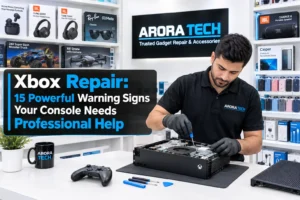
An Xbox can be the centerpiece of a gaming setup, a family entertainment system, and a reliable way to unwind after a long day. But when the console starts acting strangely, it is not always obvious whether the problem is something you can solve at home or whether you need professional Xbox repair.
Maybe your console suddenly shuts down while you are playing. Perhaps games take forever to load, the system refuses to recognize a disc, the HDMI connection stops displaying properly, or the console becomes unusually loud. Some issues are caused by simple settings, cables, storage limitations, or overheating. Others point toward hardware problems that require a closer inspection.
Knowing the difference can save you time, frustration, and potentially unnecessary expenses.
This guide explains 15 common Xbox problems that may require professional Xbox repair, along with symptoms to watch for, safe troubleshooting steps, mistakes to avoid, and situations where getting your console professionally evaluated makes more sense than repeatedly trying random fixes.
Whether you own an Xbox Series X, Xbox Series S, Xbox One, Xbox One S, or Xbox One X, the underlying lesson is simple: when your console starts behaving differently, understanding the symptom is the first step toward finding the right solution.
1. Your Xbox Keeps Turning Off by Itself
Unexpected shutdowns are among the most frustrating Xbox problems.
Imagine sitting down for a gaming session, getting deep into a match, and suddenly the console powers off. You restart it, play for a few minutes, and it happens again.
An occasional shutdown may have a simple explanation. However, repeated shutdowns deserve attention.
Possible causes can include:
- Excessive heat
- Restricted airflow
- Dust buildup
- Power-related problems
- Faulty cables
- Internal hardware issues
- Component failure
Before looking for Xbox repair, make sure the console has plenty of ventilation. Do not place it inside a cramped cabinet where hot air cannot escape. Check that the power cable is properly connected and that the electrical outlet is functioning normally.
If the Xbox continues shutting down despite appropriate ventilation and basic checks, the issue may be internal.
Repeated unexpected shutdowns can be particularly concerning if they happen during demanding games. Modern games can place substantial workloads on the console’s processor and graphics hardware, so a component that appears fine during simple tasks may reveal a problem under heavier loads.
A professional technician can inspect the console, evaluate its symptoms, and determine whether the issue is related to cooling, power delivery, or another internal component.
The important point is not to keep restarting the system indefinitely and hope that the problem disappears.
2. Your Xbox Overheats
Heat is a normal part of electronic operation, but excessive heat is not something you should ignore.
An Xbox that becomes unusually hot, displays overheating warnings, slows down, or shuts itself off may have a cooling problem.
Overheating can be associated with:
- Blocked ventilation
- Dust accumulation
- Poor placement
- Fan problems
- Internal cooling issues
- Long periods of operation in unfavorable conditions
Start with the basics.
Place the console somewhere open with adequate airflow. Keep vents unobstructed and avoid covering the system with objects. Give the console enough space around its ventilation areas.
If the problem continues, professional Xbox repair may be appropriate.
A technician can examine the console’s cooling system and determine whether internal cleaning or component-level service is necessary.
One common mistake is assuming that an Xbox needs to be physically taken apart every time it becomes warm. That is not necessarily true. Consoles naturally produce heat.
The concern is excessive or abnormal heat accompanied by performance problems.
If the console repeatedly overheats even after improving its environment, that is a stronger indication that something needs professional attention.
3. The Xbox HDMI Port Stops Working
A functioning HDMI connection is essential because it carries the video and audio signal from your Xbox to the television or monitor.
When the HDMI connection fails, you may see:
- No signal
- A black screen
- Intermittent picture
- Flickering image
- Picture that disappears when the cable moves
- Audio without video
- Video without proper audio
Before assuming you need Xbox repair, test the simplest possibilities.
Try another HDMI cable.
Try another HDMI port on your television.
If possible, try another compatible display.
Also make sure the correct input source is selected on your TV or monitor.
If the same Xbox produces no display on multiple known-good cables and displays, the console itself may be responsible.
Physical HDMI ports can be especially vulnerable to damage. A cable that is pulled, twisted, bumped, or inserted at an awkward angle can place stress on the port.
If the HDMI port is physically loose or damaged, repeatedly pushing the cable into it is unlikely to solve the issue.
This is a situation where professional Xbox repair can be particularly useful because HDMI-related problems may require specialized tools and technical experience.
4. Your Xbox Has a Black Screen
A black screen does not automatically mean your console is permanently damaged.
There are several possible explanations.
First, check the HDMI cable and TV input. Then restart the Xbox and see whether the image returns.
You can also test the console with another display if one is available.
If the Xbox powers on but consistently produces no usable image, the issue could involve the HDMI connection, display circuitry, or another internal component.
Pay attention to what the console itself is doing.
Is the power indicator behaving normally?
Do you hear the system operating?
Does the controller connect?
Does the television briefly detect the HDMI signal?
These details can help a technician narrow down the problem.
If basic troubleshooting does not restore the picture, professional Xbox repair may be necessary.
A black screen is particularly frustrating because it can make the console appear completely unusable even when other internal functions are still operating.
5. Games Keep Freezing
Game freezing can happen for many reasons.
Sometimes the game itself has a software problem. Sometimes the console needs an update. Sometimes storage is nearly full. Network problems can also create confusing symptoms in online games.
But if multiple games repeatedly freeze, the console deserves closer attention.
For example, suppose you try three different games and all of them freeze after extended play. You restart the console and the problem keeps returning.
That pattern is more significant than one isolated game crash.
Potential factors include:
- Overheating
- Storage problems
- Software corruption
- System errors
- Hardware instability
Make sure your Xbox software and games are updated. Check available storage and restart the console.
If the freezing continues across multiple games, professional Xbox repair may be worth considering.
It is useful to tell the technician exactly when the freezing occurs. Does it happen immediately? After 30 minutes? Only during graphically demanding scenes?
Those details can provide valuable clues.
6. Your Xbox Takes an Extremely Long Time to Load Games
Modern games can be large, and loading times naturally vary.
However, a significant change in loading behavior can indicate a problem.
If your Xbox used to load games normally and now takes dramatically longer, investigate what has changed.
Possible causes include:
- Nearly full storage
- Storage errors
- Software issues
- Game-specific problems
- Hardware-related storage problems
Start by checking available storage and restarting the console.
If only one game is affected, the issue may be specific to that game.
If many games and applications are suddenly slow, the console itself deserves more attention.
A technician performing Xbox repair can help determine whether the slowdown is caused by storage, software, overheating, or another hardware issue.
Do not immediately assume that a slow console means you need an entirely new Xbox.
Diagnosis should come first.
7. Your Xbox Will Not Read Game Discs
For Xbox models equipped with an optical disc drive, disc-reading problems can be extremely inconvenient.
You insert a game and nothing happens.
The console may fail to recognize the disc, repeatedly attempt to read it, or display an error.
Start by checking whether the issue occurs with multiple discs.
If one disc fails but others work, the disc itself may be the problem.
If several known-good discs fail, the drive may need attention.
Before seeking Xbox repair, make sure the discs are clean and free from obvious damage. Avoid using abrasive materials to clean them.
If the console consistently fails to read multiple good discs, the optical drive may require professional service.
Do not repeatedly force discs into the drive or attempt to insert objects to clean it.
The internal mechanism contains moving components that can be damaged by improper handling.
A professional technician can assess the drive and determine the appropriate repair path.
8. The Xbox Fan Is Extremely Loud
Some fan noise is normal.
Gaming consoles work hard, and the cooling system has to move air through the device.
But there is a difference between normal airflow noise and an unusually loud, persistent, or abnormal sound.
You might hear:
- Loud buzzing
- Grinding
- Clicking
- Rattling
- Repeated changes in fan speed
- A fan that becomes extremely loud during ordinary use
First check whether the console has sufficient ventilation.
If the Xbox is inside a small entertainment cabinet, move it to a more open location and observe whether the noise changes.
If the fan remains unusually loud, the cooling system may require inspection.
Dust accumulation can contribute to airflow restrictions, but internal mechanical problems can also produce unusual sounds.
Professional Xbox repair can help determine whether the console needs cleaning, fan service, or additional attention.
Do not ignore a new grinding or rattling sound simply because the console still works.
A new mechanical noise is information.
9. The Xbox Does Not Turn On
Few Xbox problems are more concerning than pressing the power button and getting nothing.
Before assuming the worst, check the basics.
Confirm that the power cable is securely connected.
Try another appropriate electrical outlet.
Check whether any power indicator or sound appears.
Disconnect the console from power for a short period and reconnect it according to the manufacturer’s recommended procedures.
If the console remains completely unresponsive, professional Xbox repair may be necessary.
A failure to power on can involve several possibilities, including:
- Power delivery problems
- Internal power circuitry
- Component failure
- Electrical damage
- Other motherboard-related issues
If the console recently experienced a power surge or electrical event, mention that when seeking service.
Likewise, if it stopped working immediately after another event—such as being moved, dropped, or exposed to unusual heat—that information can be useful.
Avoid repeatedly cycling power if the console shows unusual behavior.
10. Your Xbox Randomly Restarts
A console that restarts without warning can be just as frustrating as one that shuts down.
Random restarts may happen during games, while navigating menus, or when launching applications.
Start by looking for patterns.
Does it happen only during demanding games?
Does it happen when the console gets hot?
Does it happen after a certain amount of time?
Does it happen across multiple games?
These observations can help distinguish between possible causes.
Software updates and system errors can sometimes produce unexpected behavior. Overheating and power-related problems can also cause restarts.
If basic software and environmental troubleshooting does not help, professional Xbox repair can provide a deeper evaluation.
Keeping notes about when the restarts happen is surprisingly useful. A technician can work more efficiently when you can explain the exact pattern rather than simply reporting that the console “keeps restarting.”
11. Your Controller Keeps Disconnecting
Controller problems are not always console problems.
A controller may disconnect because of:
- Low battery
- Wireless interference
- Controller firmware
- Connection problems
- Physical damage
- Console-related connectivity issues
Try another controller if available.
If only one controller disconnects, the controller may be responsible.
If multiple controllers repeatedly disconnect from the same Xbox, the console may need further investigation.
This distinction matters because it prevents unnecessary Xbox repair.
Before taking the console apart or paying for service, isolate the problem as much as possible.
Try another controller, replace or recharge the batteries, restart the Xbox, and check for relevant updates.
If several controllers behave abnormally with the same console, professional diagnosis becomes more worthwhile.
12. USB Ports Stop Working
USB ports are used for controllers, accessories, storage devices, charging cables, and other peripherals.
If one port stops recognizing devices, test the device with another port.
If the accessory works elsewhere, the original port may be the issue.
Physical USB ports can become damaged through repeated use, accidental impacts, or improper insertion.
Warning signs include:
- A port feels loose
- Devices disconnect when the cable moves
- Accessories are not recognized
- Charging works intermittently
- Multiple known-good devices fail
A professional Xbox repair technician can inspect the port and determine whether the problem is physical or related to software.
Do not force a USB connector into a port.
USB connectors are designed to fit in a particular orientation. Excessive pressure can damage the port.
13. Your Xbox Experiences Network Problems on Multiple Devices
Not every connection problem requires Xbox repair.
If your Xbox cannot connect to online services, first determine whether other devices in your home are experiencing the same issue.
Check your phone, computer, smart TV, or another gaming device.
If everything has internet problems, your router or internet service may be responsible.
If other devices work normally but your Xbox repeatedly struggles, investigate the console connection.
Possible factors include:
- Wireless interference
- Network configuration
- Console software
- Ethernet cable problems
- Hardware-related network issues
If possible, test a wired connection.
If the Xbox continues experiencing unusual connectivity problems across different networks, professional evaluation may be appropriate.
The important lesson is to identify whether the problem follows the console or follows the network.
14. The Xbox Has Physical Damage
A console does not need to be completely destroyed to suffer internal damage.
It may have been:
- Dropped
- Knocked off a shelf
- Hit by an object
- Damaged during transportation
- Exposed to liquid
- Placed under excessive pressure
External damage can sometimes be obvious.
But internal damage may not be visible.
After a significant impact, you might notice that the Xbox:
- No longer displays video
- Makes unusual noises
- Does not recognize accessories
- Shuts down
- Restarts unexpectedly
- Has connectivity problems
- Behaves differently than before
If a new problem appears immediately after physical damage, mention that connection when seeking Xbox repair.
Do not assume that because the exterior looks fine, everything inside is fine.
15. Your Xbox Has Liquid Exposure
Liquid and electronics are a dangerous combination.
If your Xbox has been exposed to water, drinks, spills, or significant moisture, do not simply turn it on repeatedly to see whether it works.
Liquid can affect electrical components even when the console initially appears normal.
The appropriate response depends on the circumstances, but the safest general approach is to avoid unnecessary operation and seek professional guidance.
A technician can inspect the console for signs of liquid exposure and determine whether further service is appropriate.
Liquid-related problems are one of the situations where professional Xbox repair can be considerably more useful than internet troubleshooting.
Do not use aggressive heating methods or attempt to dry internal components with inappropriate equipment.
Xbox Problems You Can Often Troubleshoot Yourself
Not every issue requires professional service.
Before arranging Xbox repair, there are several basic steps that are generally reasonable.
Restart the Console
A restart can resolve temporary software issues.
If the problem disappears after restarting and does not return, you may not need service.
Check Cables
HDMI, power, Ethernet, and USB cables can all cause symptoms that look like hardware failures.
Whenever possible, test with a known-good cable.
Improve Ventilation
Make sure the console has adequate airflow.
Avoid placing it against walls or inside tightly enclosed spaces.
Check for Updates
System and game updates can resolve bugs and compatibility problems.
Test Multiple Games
If only one game has problems, the game itself may be responsible.
If everything has problems, the console deserves closer attention.
Test Another Display
For video problems, another television or monitor can help determine whether the Xbox or display is responsible.
These simple steps can prevent unnecessary Xbox repair and help you describe the problem more accurately if professional service becomes necessary.
When DIY Troubleshooting Is No Longer Enough
There is a point where repeatedly trying random fixes stops being useful.
Consider professional Xbox repair when:
- The console repeatedly shuts down.
- It overheats despite proper ventilation.
- The HDMI port is damaged.
- The system produces no display.
- Multiple games freeze.
- The disc drive will not recognize known-good discs.
- The fan makes abnormal mechanical noises.
- The console will not power on.
- Multiple controllers disconnect.
- Ports fail despite known-good accessories.
- Problems began after physical damage.
- Liquid exposure occurred.
- The same issue keeps returning.
Professional diagnosis can save you from replacing parts that were never actually defective.
Why Repeated Restarts Are Not a Real Repair
One of the most common troubleshooting habits is simply restarting the console again and again.
Restarting is useful when a temporary software problem is involved.
But if the same hardware-related symptom returns every time, restarting is not fixing the underlying issue.
For example, if your Xbox overheats after 30 minutes of gaming and shuts down, restarting it may give you another short period of use. It does not necessarily solve the cooling problem.
Similarly, if the HDMI port is physically damaged, restarting the Xbox will not repair the connection.
Think of a restart as a diagnostic step, not a universal solution.
If the same symptom repeatedly returns, it is time to investigate further.
Why Professional Xbox Repair Can Be Safer Than DIY Disassembly
Online videos can make console repair look deceptively simple.
You may find a tutorial showing someone opening an Xbox and replacing a component in a few minutes.
What those videos do not always show is the experience required to diagnose the problem correctly.
Before replacing anything, you need to know:
- Which component actually failed?
- Is the replacement compatible?
- Are specialized tools required?
- Could another component be responsible?
- Can the console be safely opened?
- Can the repair introduce additional damage?
Incorrect disassembly can damage connectors, boards, cables, screws, ports, or other components.
For customers who are comfortable with electronics and have the correct equipment, some maintenance tasks may be manageable.
But when the console has a complex hardware fault, professional Xbox repair can be a more sensible route.
The goal is not simply to replace something.
The goal is to identify the actual problem.
How to Prepare Your Xbox Before Professional Repair
If you decide that your console needs Xbox repair, a little preparation can make the process easier.
Describe the Problem Clearly
Tell the technician what happens.
For example:
“The console shuts down after about 20 minutes of gaming.”
is more useful than:
“It doesn’t work.”
Mention Recent Events
Tell them if the Xbox was dropped, moved, exposed to liquid, connected to a different TV, or affected by a power event.
Explain What You Already Tried
Mention whether you:
- Changed the HDMI cable
- Tested another television
- Restarted the console
- Improved ventilation
- Tested different games
- Tested another controller
This helps avoid repeating the same troubleshooting steps.
Back Up What You Can
If the console is still functioning, review your account and game-data situation before service.
Cloud-saved game progress may already be associated with your account, depending on the game and configuration, but it is still wise to understand what information matters to you before handing over any electronic device for service.
How to Decide Between Repairing and Replacing an Xbox
A major hardware problem naturally raises another question:
Is it worth repairing the console?
There is no universal answer.
Repair may make sense if:
- You like your current console.
- The problem is isolated.
- Repair cost is reasonable.
- Your games and accessories are already compatible.
- The console otherwise meets your needs.
Replacement may be worth considering if:
- Multiple major components have failed.
- The console is significantly outdated for your needs.
- Repair costs approach the price of another suitable system.
- You were already planning to upgrade.
The best approach is to get enough information to make an informed decision.
That is one reason professional Xbox repair assessment can be useful even when you ultimately decide not to repair the console.
Knowing what failed gives you a clearer basis for comparison.
How to Keep Your Xbox Running Better for Longer
Good maintenance cannot prevent every hardware failure, but it can reduce avoidable problems.
Keep Airflow Clear
Do not block ventilation openings.
Avoid Extremely Confined Spaces
An entertainment center may look neat, but if hot air cannot escape, the console can struggle to cool itself.
Keep Dust Under Control
The area around your console should be reasonably clean.
Handle Cables Carefully
Avoid pulling or bending HDMI and power cables aggressively.
Keep Food and Drinks Away
A spill can turn a gaming session into a major electronics problem.
Do Not Move the Console Carelessly
Disconnect cables and handle the console carefully when relocating it.
Give the Console a Suitable Environment
Avoid extreme heat and unnecessarily cramped spaces.
These habits will not eliminate the possibility of needing Xbox repair, but they can help you avoid some preventable problems.
8 Questions to Ask Before Choosing an Xbox Repair Provider
If your Xbox needs professional attention, asking a few questions beforehand can help.
1. What do you think is causing the problem?
A technician should be able to explain the likely issue in understandable language.
2. Is diagnosis required before giving a final repair recommendation?
In many cases, yes. Complex symptoms cannot always be diagnosed accurately from a quick description.
3. What parts might be involved?
Understanding what may need service helps you make an informed decision.
4. Is the repair worth doing?
Ask for an honest assessment based on the console’s condition.
5. Will the console be tested after service?
Testing is important to confirm that the reported problem has been addressed.
6. What happens if another problem is discovered?
Understand the process before authorizing additional work.
7. Do you work with my Xbox model?
Different generations and versions can have different hardware configurations.
8. Is there a warranty or service policy?
Ask what coverage applies to the completed repair.
These questions can help turn Xbox repair from a frustrating guessing game into a more transparent process.
Local Help for Xbox and Everyday Device Problems
Technology problems do not always happen at convenient times.
A console can stop displaying video before a weekend gaming session. A controller can stop connecting before friends arrive. A phone, tablet, computer, or another device can suddenly become difficult to use when you need it most.
That is why having a local place to ask questions can be useful.
For customers in Blackwood and surrounding South Jersey communities, Arora Tech provides local technology repair and support inside Gloucester Premium Outlets.
The store is located at:
Next to UGG’s, 100 Premium Outlets Dr Store #785, Gloucester Premium Outlets, Blackwood, NJ 08012, United States.
You can find the location on Google Maps.
Arora Tech’s broader approach is straightforward: help people understand what’s happening with their technology and identify practical options.
You can explore the company’s services or learn more through the Arora Tech website.
The idea is not that every technology problem needs a complicated repair. Sometimes the answer is a cable, a setting, better ventilation, or a simple troubleshooting step.
Other times, the problem genuinely requires professional attention.
Knowing which situation you are dealing with is what matters.
Why Console Cleaning and Maintenance Matter
Gaming consoles spend hours processing demanding games while continuously moving air through their cooling systems.
Over time, the surrounding environment can contribute to dust accumulation.
That does not mean every console needs frequent disassembly.
Instead, focus on practical prevention.
Keep the console in a clean environment. Avoid placing it directly on dusty floors or in areas where airflow is restricted. Keep ventilation areas clear.
If the console begins producing abnormal heat or noise, do not assume it simply needs to “work harder.”
A professional can determine whether cleaning, cooling-system attention, or more extensive Xbox repair is appropriate.
Maintenance is often less exciting than buying a new console, but it can be an important part of responsible electronics ownership.
What If Your Xbox Works Sometimes but Not Always?
Intermittent problems can be among the hardest to diagnose.
A console that never turns on gives you a clear symptom.
A console that works perfectly for two hours and then suddenly crashes presents a different challenge.
Intermittent behavior can be associated with:
- Heat
- Power instability
- Loose connections
- Software problems
- Component degradation
- Storage issues
If you experience intermittent problems, write down what happens before the failure.
For example:
Time: 45 minutes after starting a game
Symptom: Screen freezes
Next: Console restarts
Environment: Console felt unusually warm
That information is much more useful than simply saying the Xbox is unreliable.
When seeking Xbox repair, providing a detailed symptom history can help the technician reproduce the problem.
Don’t Ignore a Problem Just Because the Xbox Still Works
One of the biggest mistakes people make with electronics is waiting for total failure.
If an Xbox has started behaving differently, that does not necessarily mean it will stop working tomorrow.
But recurring symptoms deserve attention.
A fan that suddenly becomes louder, an HDMI connection that cuts out when the cable moves, or a console that repeatedly overheats is telling you something.
You do not necessarily need immediate repair for every small issue.
But you should understand the symptom and monitor whether it is getting worse.
If the problem continues, professional Xbox repair can help determine what is happening before you spend money on unnecessary replacement hardware.
Frequently Asked Questions About Xbox Repair
How do I know if my Xbox needs professional repair?
If basic troubleshooting does not solve a recurring problem, especially if the console overheats, shuts down, loses video, refuses to read discs, produces unusual noises, or has physical damage, professional evaluation may be appropriate.
Can an HDMI problem be repaired?
Potentially, yes. The correct solution depends on whether the problem is the HDMI cable, television, port, or internal video circuitry. Physical port damage may require professional Xbox repair.
Why does my Xbox keep turning off?
Overheating, ventilation problems, power issues, software problems, and hardware faults can all cause unexpected shutdowns. If improving ventilation and performing basic troubleshooting does not help, have the console evaluated.
Why is my Xbox fan so loud?
Some fan noise is normal, particularly during demanding games. Excessive or unusual buzzing, grinding, clicking, or rattling can indicate a cooling or mechanical issue.
Why won’t my Xbox read discs?
The disc may be damaged or dirty, but if multiple known-good discs are not recognized, the optical drive may require professional attention.
Can I repair my Xbox myself?
Some basic troubleshooting and maintenance can be performed at home. Internal repairs are more complicated and can cause additional damage if performed without the appropriate tools and experience.
Is it worth repairing an older Xbox?
It depends on the fault, repair cost, console condition, and your personal needs. A professional diagnosis can help you compare repair and replacement options.
Can overheating damage an Xbox?
Excessive heat can contribute to hardware problems. Good ventilation is important, and repeated overheating should not be ignored.
What should I do if my Xbox gets wet?
Avoid repeatedly powering it on and seek professional guidance. Liquid exposure can affect internal electrical components even when damage is not immediately visible.
Can a repair shop diagnose my Xbox without immediately replacing parts?
A proper diagnosis should be focused on identifying the cause of the problem before recommending a repair. Ask the provider what testing they perform and what they believe is causing the issue.
Final Thoughts: Know When Your Xbox Needs Help
Gaming should be about playing—not spending hours wondering why your console suddenly stopped working.
Some Xbox problems are simple. A loose cable, blocked airflow, low controller battery, incorrect TV input, or temporary software issue can sometimes be resolved without professional assistance.
Other problems are different.
Repeated shutdowns, persistent overheating, HDMI failures, black screens, disc-drive problems, abnormal fan noise, power failures, physical damage, liquid exposure, and recurring system crashes can all be signs that your console needs closer attention.
The smartest approach is not to panic and not to immediately replace the entire console.
Start with basic troubleshooting.
Check cables.
Check ventilation.
Test another display.
Try another controller.
Test multiple games.
Look for patterns.
If the issue continues, professional Xbox repair can help determine what is actually happening.
For customers around Blackwood and nearby South Jersey communities, Arora Tech offers a convenient local option for people looking for practical help with everyday technology problems. Located inside Gloucester Premium Outlets, the store is positioned to help customers who need assistance with devices they rely on for work, communication, entertainment, and daily life.
You can visit the Arora Tech Services page to explore available services or use the Arora Tech Contact page to get in touch.
If you want to describe your device issue before visiting, you can also use the Arora Tech repair form.
For inquiries, call +1 856-723-6939 using the Call Now option or email techbyarora@gmail.com through Email Arora Tech.
And if you would like to learn more about the business and its local presence, visit the Arora Tech Google profile.
Ultimately, the goal of good Xbox repair is not simply to make a console power on again. It is to understand the problem, identify a sensible solution, and help you get back to enjoying the technology you already own.
When your Xbox starts behaving strangely, don’t ignore the warning signs. A little troubleshooting can solve some problems. And when troubleshooting reaches its limit, knowing when to seek professional help can save you time, frustration, and potentially unnecessary expense.